
Choose the orders
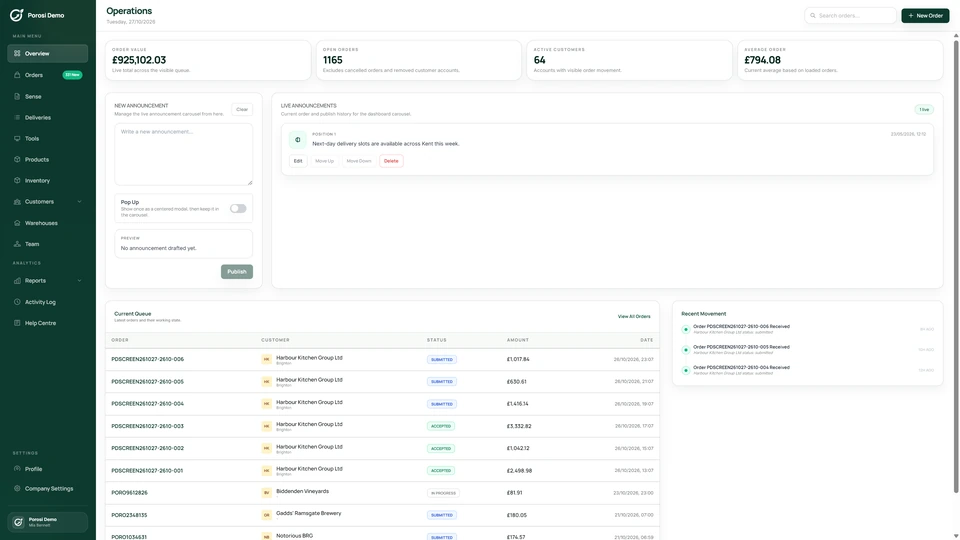
Select the orders your team needs to prepare.
Use the products, units, quantities and notes already on the order to prepare picking work. Keep shortages and supply changes visible to the team.

Choose the orders
Check each line
Record supply changes
Prepare for dispatch
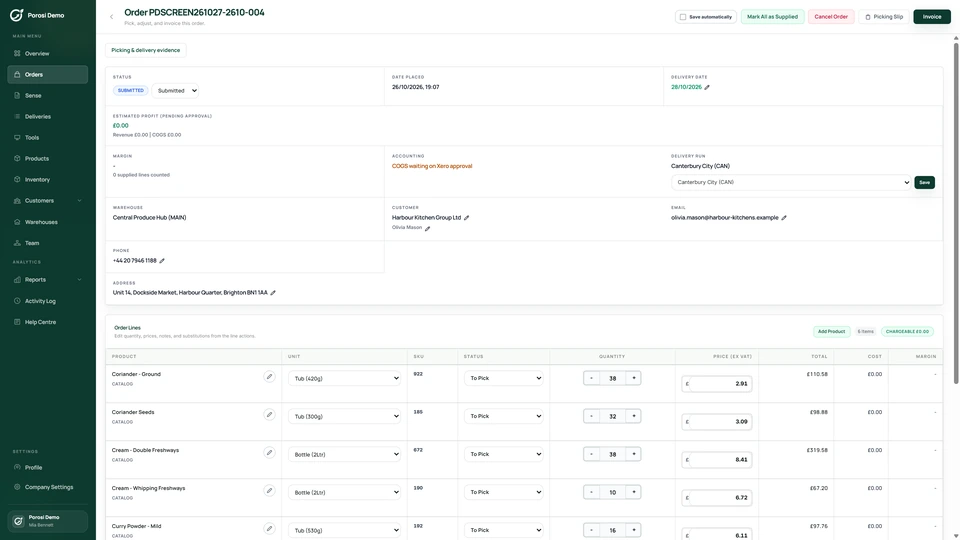
Real Porosi product screens. Customers can order on iOS, Android or the web, and submitted orders appear in the supplier dashboard for review.
Prepare picking work from the products, quantities and notes on the customer order. Your team can check shortages and changes before preparing the items for dispatch.
Select the orders your team needs to prepare.
Review the product, selling unit, requested quantity and notes.
Keep the quantity supplied and any agreed change with the order.
Use the reviewed order to prepare picking documents and the delivery run.
Check these details with the people who handle the orders each day.
Similar items or pack sizes can be confused.
Use the product description and unit on the order.
The supplied amount differs from the request.
Record the reviewed quantity against the order line.
Stock is insufficient for an ordered line.
Review the warning and decide what can be supplied.
Start with your existing customer accounts and product information. Check the settings with the people who handle these orders each day.
Confirm descriptions and units match the warehouse labels.
Use picking documents or discuss the Porosi Bridge paperless picking setup.
Check picking, a changed quantity and the details passed to dispatch.
Porosi provides order documents for picking. Review the order and any changes before generating the paperwork.
Porosi Bridge supports paperless tablet picking and connected scales. See the Bridge page for the supported hardware and setup.
A unit label alone does not convert stock. Configure the selling units and record the actual quantity supplied.
Tell us how you handle these orders today. We will show the relevant screens and answer your setup questions.