
Find the invoice
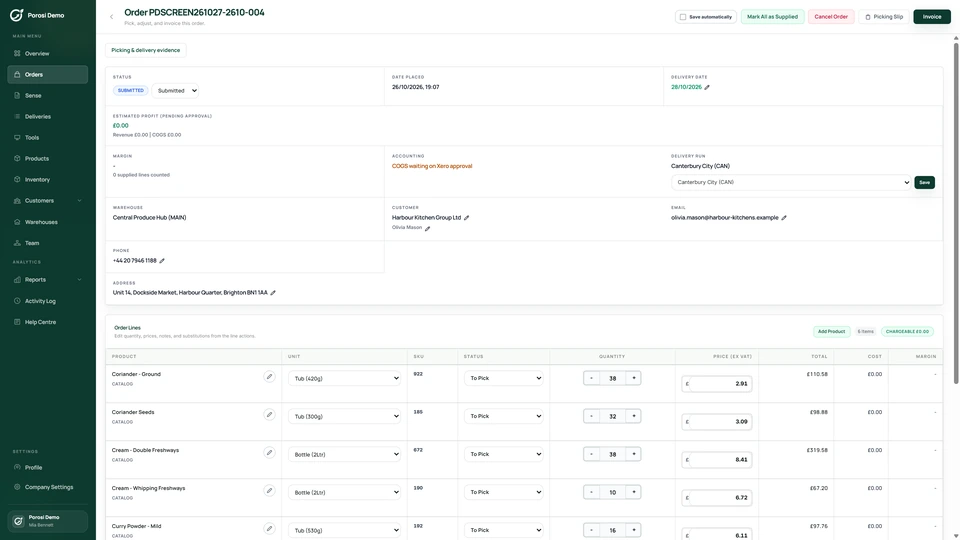
Open the customer order and identify the invoice being adjusted.
Review the original order and invoice, check the items and amount being adjusted, and follow the supported credit-note process with your accounts team.

Find the invoice
Check the reason
Review the amount
Follow the credit
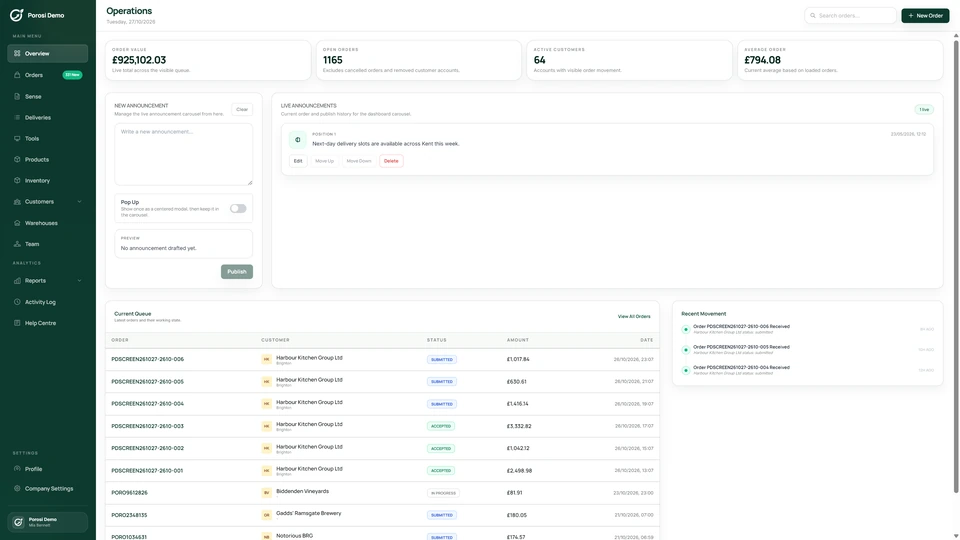
Real Porosi product screens. Customers can order on iOS, Android or the web, and submitted orders appear in the supplier dashboard for review.
Review the original order, the invoiced quantities and the reason for an adjustment. Use the available credit-note process to record the correction while retaining the original financial record.
Open the customer order and identify the invoice being adjusted.
Review the returned, missing or incorrectly invoiced items with the customer.
Check the affected lines, quantities, prices and tax before issuing the credit.
Keep the credit reference available with the customer and accounting records.
Check these details with the people who handle the orders each day.
A paid or settled invoice needs a different action from an editable unpaid invoice.
Follow the available credit or update action and its safeguards.
The adjustment must match the agreed issue.
Review the affected quantities, prices and tax.
The team needs to follow the original charge and correction.
Keep the credit linked to the customer and original invoice.
Start with your existing customer accounts and product information. Check the settings with the people who handle these orders each day.
Review your Xero or QuickBooks setup with accounts.
Decide who checks and approves credit requests.
Walk through an order query, its invoice and the required adjustment.
Paid and settled records retain financial safeguards. Use the appropriate credit process instead of treating every invoice as editable.
Eligible unpaid invoices can be updated after an approved order correction. The available action depends on the invoice state.
Xero and QuickBooks Online are fully supported. Confirm the accounting settings and credit process during setup.
Tell us how you handle these orders today. We will show the relevant screens and answer your setup questions.